Put a small player at the left-hand entrance, press an arrow key, and make touching a wall send it back to the start. Learning how to make a maze in Scratch brings several beginner coding ideas into one playable project.
You'll use coordinates to position the player and a loop to read the keys. Conditions decide whether it has touched a wall, while a broadcast announces a win.
This version uses an original painted backdrop and a separate Goal sprite. Scratch is the platform's name, used descriptively here. The graphics belong to this tutorial; no recognizable game characters are needed.
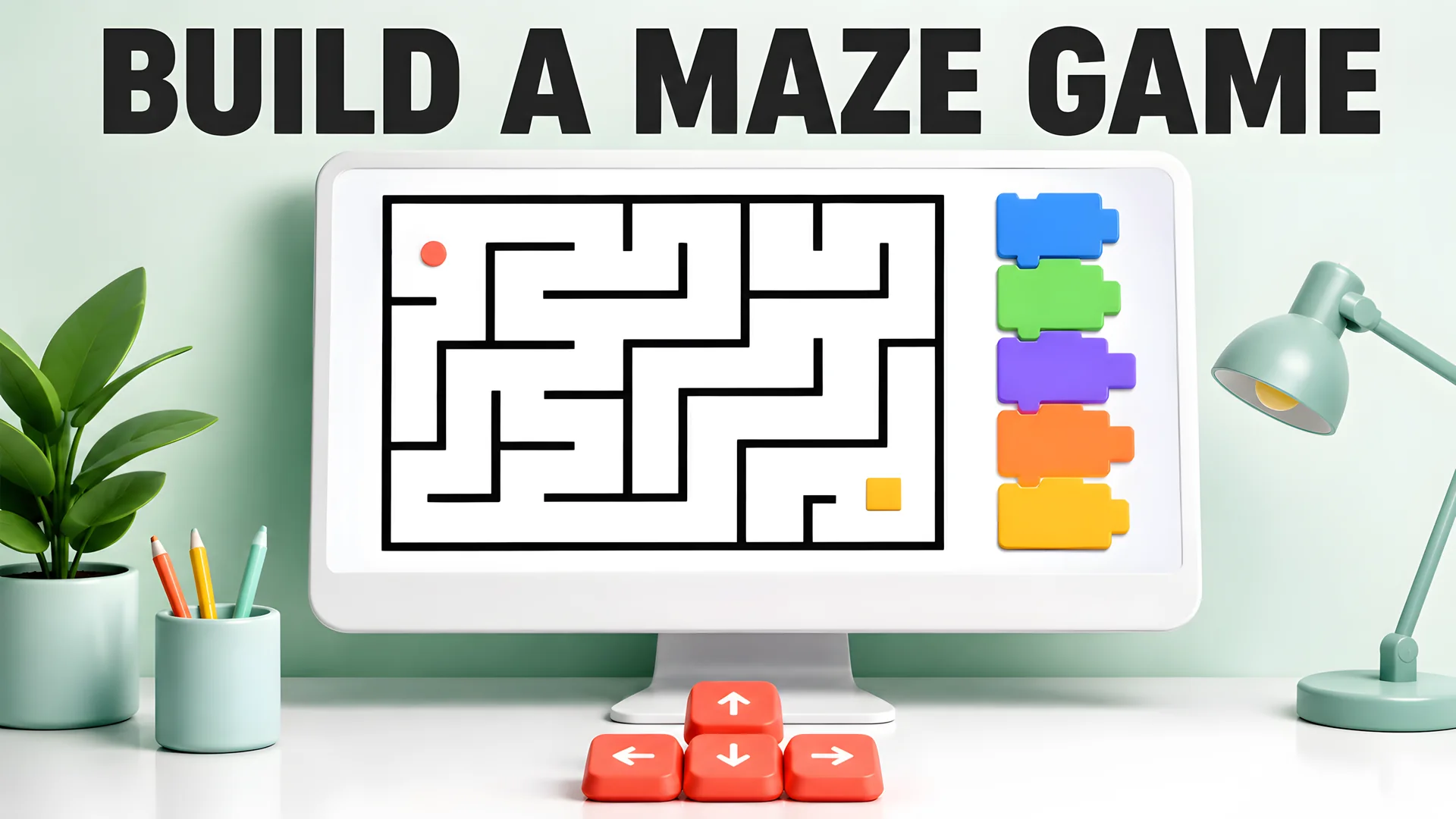
Coding concept, not an editor screenshot. Follow the exact block instructions below.
What you'll build
The project has one backdrop, a Player sprite, and a Goal sprite. It also needs a variable called playing, which prevents movement and repeated wins after the goal has been reached.
- Arrow keys move the player.
- Walls reset it. A custom block holds the starting position in one place.
- Reaching Goal broadcasts
winand shows a clear message. - The green flag starts a fresh attempt. A second level is an optional extension.
You can download the original backdrop PNG or paint your own. The scripts below name the blocks in their stacking order. Square brackets identify menu choices or values you enter.

The official Scratch ideas page offers introductory tutorials if the editor is unfamiliar.
Make the backdrop
In the Stage's Backdrops editor, paint a maze or upload the PNG. Use solid black, #000000, for walls and white for the playing area.
Reserve that black exclusively for collision walls. A black decorative label inside a corridor becomes an invisible extra obstacle once you connect the color sensor. Put any captions outside the playing area and use a different color.
The supplied backdrop is 480 by 360 pixels. Its passage centers run from x = -200 on the left to x = 200 on the right. Start the player at x = -200, y = 140 and put Goal at x = 200, y = -140.
Use a player about 12 pixels across and wall strokes at least 8 pixels thick. The example's wider corridors leave room around it. If you paint another layout, inspect every junction at a high editor zoom; a two-pixel gap beside a corner can be hard to notice at normal size.
Add a pale green start zone. The Goal sprite provides the finish marker, so you don't need a second sensing color.
Add a player and starting state
Paint a simple coral circle centered in its costume. Name the sprite Player. Avoid a long pointer or stray painted pixel, which would change where collisions occur.
Create a variable called playing for all sprites. Hide its on-stage monitor once you're done debugging.
Under My Blocks, make a block named reset player. Leave the screen-refresh option at its default. Its definition contains these blocks.
define reset player
go to x: (-200) y: (140)
set rotation style [don't rotate]
say []
Now begin Player's main script.
when green flag clicked
set [playing] to (1)
reset player
The Stage can switch to your first backdrop on the green flag, while Goal sets its own starting coordinates. Keep Player's position in reset player so a later entrance change requires one edit.
Don't reset the timer inside this custom block if wall collisions should preserve elapsed time. Put reset timer in the green-flag script instead.
Program arrow-key movement
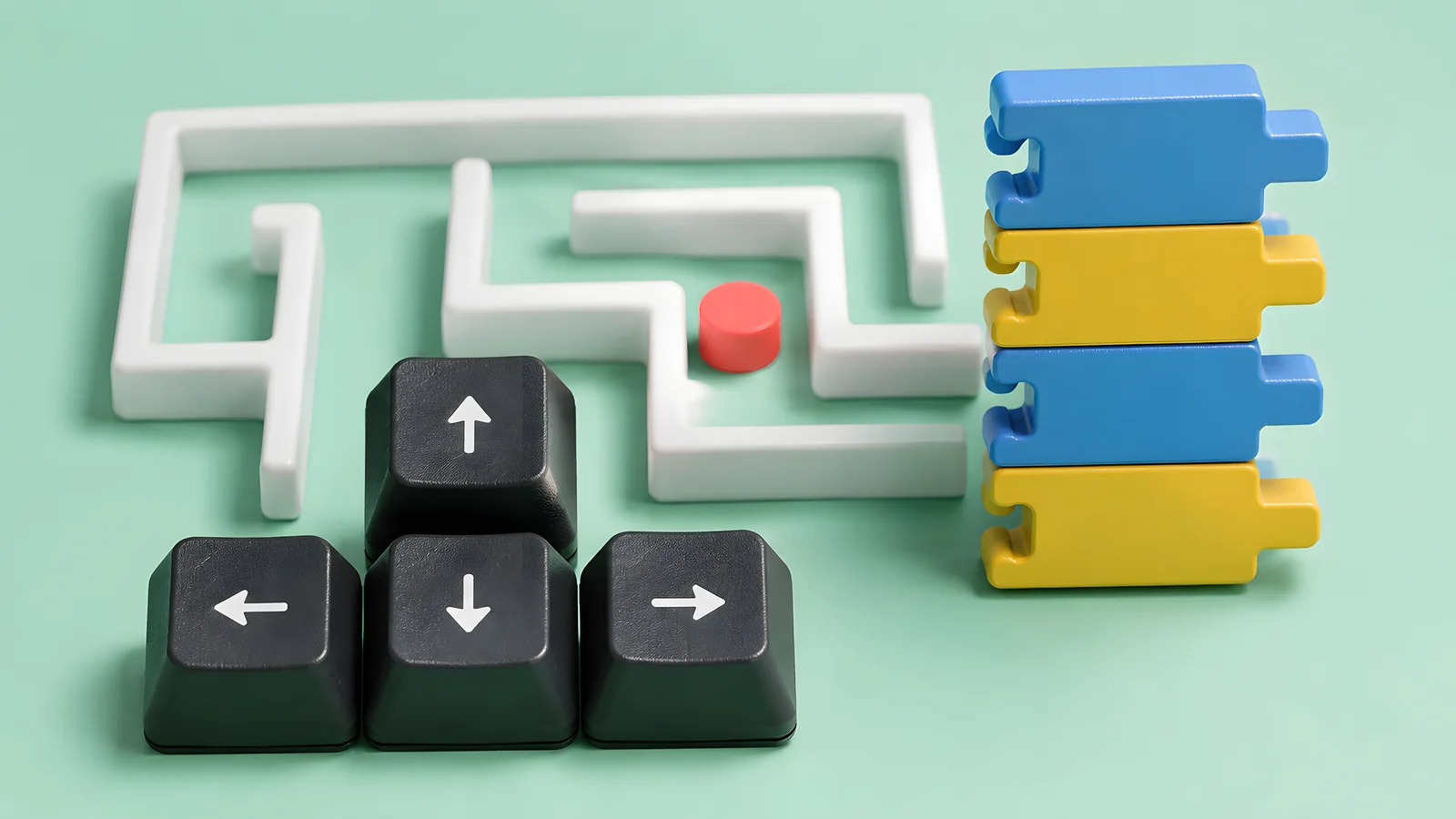
Movement illustration. The scripts specify the coordinate changes.
Attach a forever block beneath Player's green-flag setup. Inside it, put if playing = 1 then. That condition encloses the movement and goal checks.
Build these four key checks inside that condition.
if <key [up arrow] pressed?> then
  change y by (4)
  check wall
if <key [down arrow] pressed?> then
  change y by (-4)
  check wall
if <key [right arrow] pressed?> then
  change x by (4)
  check wall
if <key [left arrow] pressed?> then
  change x by (-4)
  check wall
You'll define check wall next. Calling it after each axis movement checks the intermediate position when two keys are held together. With only one collision check after all four movements, a diagonal move can miss a troublesome corner.
Positive y moves upward; positive x moves right. The negative values move in the opposite directions.
Keep the increment small. A sprite that jumps across a thin wall can land in open space before the sensor runs. These 4-pixel steps work with the supplied 8-pixel walls, but you still need to test corners and any edited artwork.
Two held arrow keys can produce diagonal movement. It will be faster overall than movement along one axis. That is acceptable for this beginner project; normalized movement can be a later refinement.
An alternative uses four separate when [arrow] key pressed scripts. Those are shorter to assemble, although held-key behavior depends on keyboard repeat and coordinated collision checks become less tidy. The forever loop keeps the checks together.
Detect wall collisions
Create another custom block called check wall.
define check wall
if <touching color [sample the black wall]?> then
  reset player
Choose the color directly from a solid section of wall with the eyedropper. A softened edge may contain gray pixels; sample the center.
You may add start sound [bump] before the reset. Use a short sound and avoid stacking long sounds during repeated collisions.
Test walls from all four directions. Approach a long straight wall, then a corner. Hold two arrow keys as well as one. Repeat after changing the sprite's costume or size.
If sensing seems unreliable, inspect these details.
- Matching decoration. Any visible artwork in the sensed wall color can trigger the same condition.
- A costume with large transparent margins can make positioning confusing, although transparent pixels themselves don't count as painted contact. Center the visible shape and remove stray opaque pixels.
- Movement steps may be larger than your thinnest barrier.
- Check the selected color. A near-black goal or anti-aliased wall edge can be difficult to distinguish when sampling.
After a collision, another held key may move the newly reset player a few pixels during the same loop. That is harmless if START has clearance. A stricter reset pause can be added later, but avoid placing START against a wall.
Add Goal and a win condition
Paint a gold square as a second sprite and name it Goal. Keep it inside the final corridor with room around every edge.
Goal's setup is simple.
when green flag clicked
go to x: (200) y: (-140)
show
After the four movement checks, still inside Player's if playing = 1 condition, add this sequence.
if <touching [Goal]?> then
  set [playing] to (0)
  broadcast [win]
Setting playing to zero before broadcasting prevents the next loop from issuing another win. Give Player a separate receiver.
when I receive [win]
say [You solved it!]
Movement stops because the main loop's condition is now false. You can still click the green flag to replay.
A finish-zone color can replace the Goal sprite, using another touching color condition. The named sprite is easier to recognize while reading the script, which is why this tutorial uses it.
An optional timer can show elapsed seconds on completion. Get the basic win working before adding a score.
Reset and replay
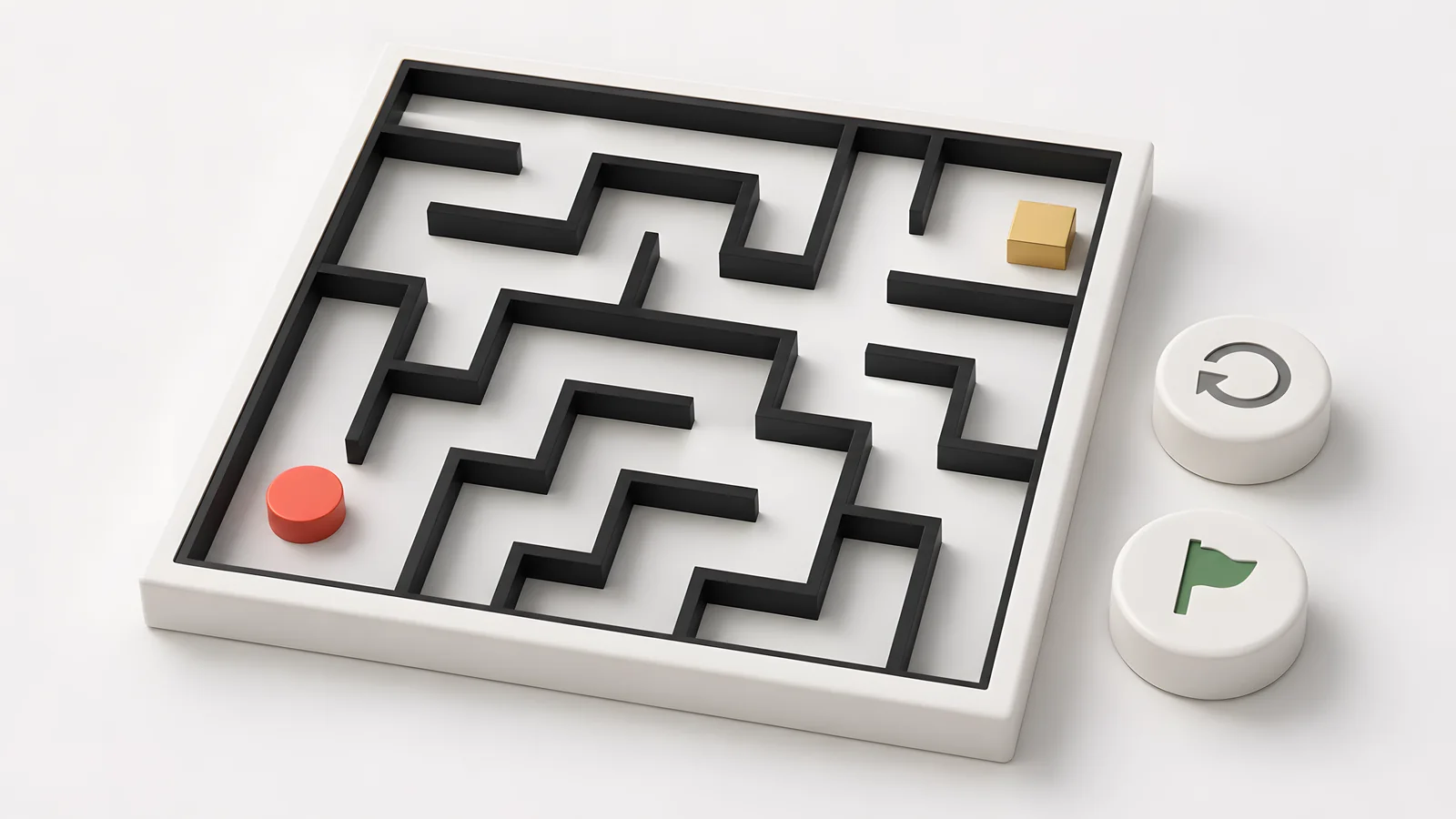
A maze game with a goal and replay controls.
Click the green flag after winning and after a collision. Both should place Player at the same coordinates, clear its message, and allow movement.
The green flag resets playing to 1. A collision only calls reset player; it doesn't restart the whole project or recreate Goal.
Avoid stop all in the collision block. It would end the running game instead of allowing another attempt.
Use the same reset block at a level transition. If different levels have different entrances, replace its literal coordinates with startX and startY variables, then set those variables before calling it.
Optional second level
Add a second backdrop and a level variable. On the first win, keep playing at zero while changing the backdrop and Goal position. Set the new starting coordinates, call reset player, then set playing to 1.
Use one controller script for that transition, or broadcast [load level] and wait before enabling movement. Multiple simultaneous receivers can otherwise resume the game while Goal is still moving.
Only the final level should display the permanent win message. Reset level on the green flag.
Debug checklist
- Player begins inside the intended corridor.
- Each arrow changes the correct coordinate in the correct direction.
- Straight approaches and diagonal corner approaches cannot cross walls.
- Collisions return Player consistently.
- Goal triggers once per completed level.
- The green flag clears the old win state.
- An optional second level loads its own entrance and goal before play resumes.
For layout ideas, use the maze generator or learn to draw your own maze. Maze-generation algorithms explain how branching layouts are created; their generation logic is separate from the movement scripts here.