Maze Forge lets you download mazes for printing and sharing. The two most useful formats are PDF and SVG.
This guide tells you which one to pick based on what you are doing, and how to avoid the blur, clipping, and scaling problems that show up in classrooms and home printers. If you want to start with the simplest path, download a pack PDF from the Easy Starters Pack or browse a maze and use the Print button from the mazes hub.
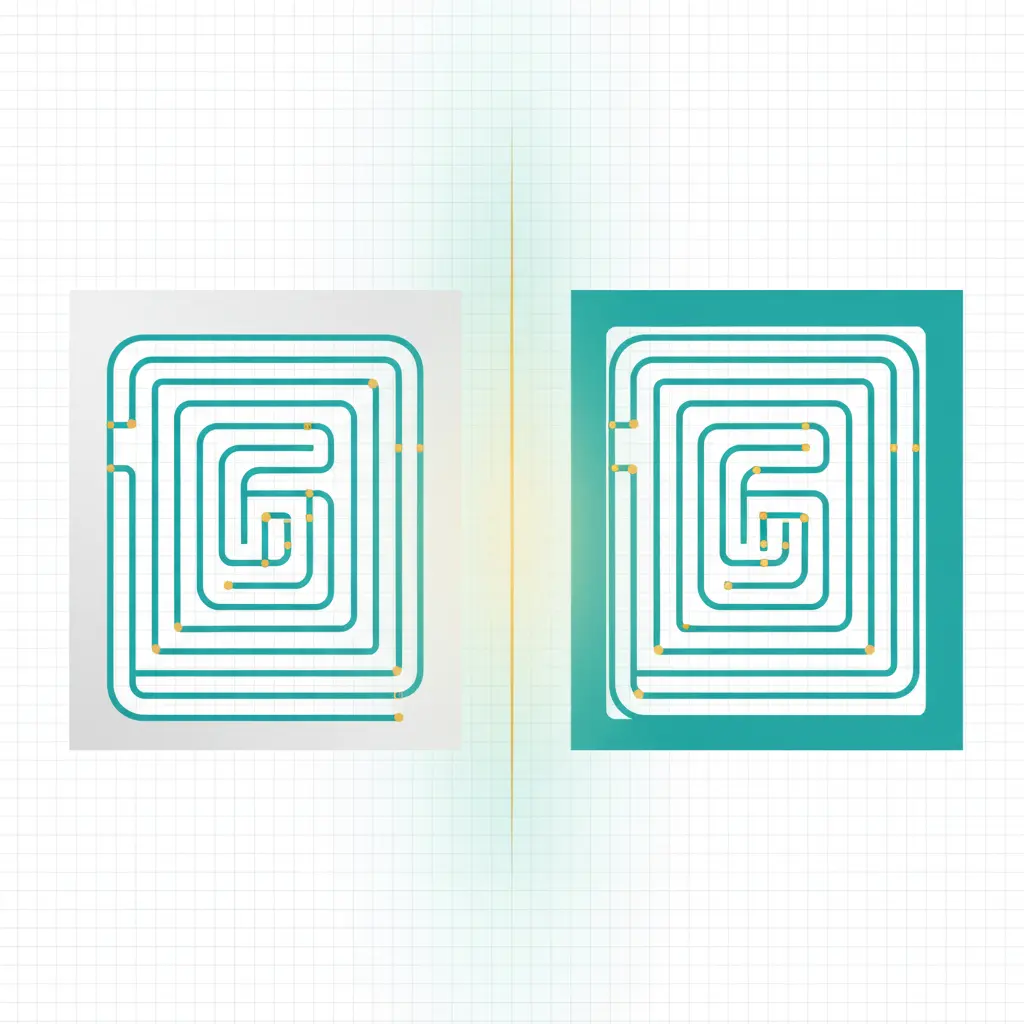
quick links
- Print packs (PDF): Easy Starters Pack, Medium Mix Pack
- Browse and print: mazes hub
- Fix cropping: print mazes without cropping
- Pick difficulty: how Maze Forge labels difficulty
the short answer
- Choose PDF when you want predictable printing with minimal setup.
- Choose SVG when you want to edit, resize inside another document, or keep lines crisp at any scale.
If you are a teacher printing a stack of worksheets, PDF is the default. If you are dropping a maze into a newsletter, slide deck, or design tool, SVG is often the cleaner option.
what is a PDF in this context?
For Maze Forge, a PDF is a print-ready document with:
- a fixed page size (A4 or US Letter in packs)
- consistent margins
- vector lines that stay sharp
PDFs are friendly to school printers because they keep your layout stable.
what is an SVG in this context?
SVG is a vector image format. It is useful when you want to:
- resize without blur
- change line thickness in a design tool
- combine a maze with other content (a worksheet header, a logo, a theme prompt)
SVG is not a "print format" by default. It becomes print-ready once you place it into a document or print it from a tool that respects its sizing.
a quick decision table
| Your goal | Pick | Why |
|---|---|---|
| Print a classroom stack | Predictable page size and margins. | |
| Print at home with one click | Less chance of browser scaling surprises. | |
| Add a maze to a worksheet in Google Docs or Word | SVG (or PDF as image) | Easier resizing; cleaner lines. |
| Edit line color or thickness | SVG | Vector elements are editable. |
| Share as a file with a friend | Most people can open it without extra steps. |
why people get blurry mazes
Blurry lines usually come from printing a raster image preview instead of a vector file.
Common causes:
- You printed a screenshot of the maze.
- You copied a PNG into a document and stretched it larger.
- The browser scaled the page down and then back up.
Fix:
- Use PDF for printing.
- If you need resizing, use SVG and keep it vector through the workflow.
If you already see clipping or weird scale, start here: print mazes without cropping.
SVG pitfalls (and how to avoid them)
SVG is powerful, but it has a few footguns:
- Some apps rasterize SVG on import. Test by zooming in; if the lines blur, it converted to pixels.
- Printing directly from the browser can change sizing. If you need predictable layout, place the SVG into a document with a known page size.
- Fonts and text layout can differ. Mazes are mostly lines, so this is rarely an issue, but a worksheet header can shift.
A safe approach:
- Use PDF when the maze should be the page.
- Use SVG when the maze is one element in a larger layout.
how packs help
Packs are the smoothest print workflow because they include:
- a student PDF in A4
- a student PDF in Letter
- separate answer keys in A4 and Letter
Start with one of these:
FAQ
which format should I email to a teacher?
PDF. It opens everywhere and prints with fewer surprises.
can I edit PDFs instead of using SVG?
You can, but it depends on your tools. Many editors handle SVG more smoothly for line art.
why does my printer shrink the maze?
Auto-scaling. Set scale to 100% and adjust margins. This guide covers the settings: print mazes without cropping.
do single mazes have downloads too?
Yes. Open a maze from the mazes hub and use the download buttons on the maze page.
next step
- Need predictable printing? Start with the Easy Starters Pack.
- Need to place a maze into a worksheet layout? Download SVG from a maze page and keep it vector through your workflow.
- Want a deeper printing checklist? Read print mazes without cropping.